 By simon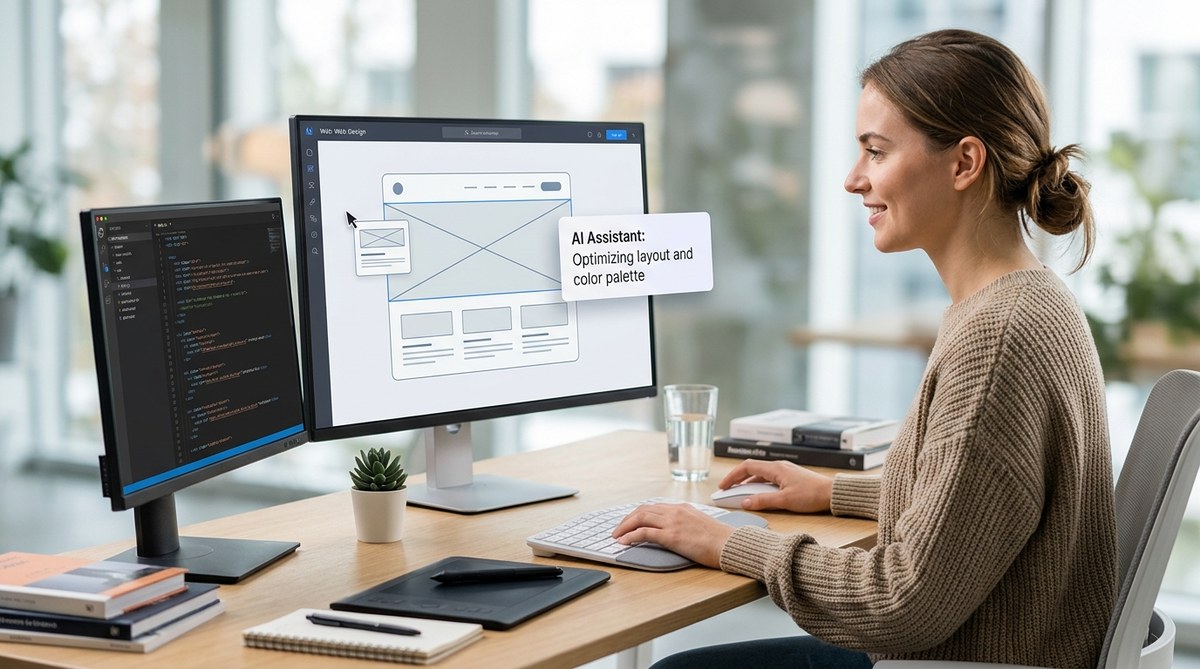
In 2026, the line between a designer’s creative vision and the final product has never been thinner. AI tools now handle the tedious parts of web design — resizing assets, generating copy variants, even suggesting layouts — so you can focus on the strategic decisions that truly matter. But knowing which tools to use and when can feel overwhelming. This guide walks you through a practical, human-centered approach to weaving AI into your daily workflow without losing your creative touch.
By automating repetitive tasks like wireframing, asset generation, and copywriting, AI lets you focus on high-value creative decisions. Start with one phase of your workflow, test a dedicated tool, and refine your process incrementally. The goal is not to replace your skills but to amplify them — saving you up to 15 hours per week while improving consistency.
Rethinking Your Design Process with AI
The biggest shift in 2026 is that AI is no longer a separate “innovation” you add at the end. It is baked into the tools you already use. Figma, Adobe, and Canva all ship AI features that suggest color palettes, generate icons, or even rebuild components from a prompt. If you ignore these, you are leaving efficiency on the table.
But here is the catch: blindly accepting every AI suggestion can water down your work. The best designers treat AI as a junior collaborator — one that drafts ideas, checks patterns, and handles grunt work, but always defers to your judgment. The key is to map out where in your workflow AI actually saves time without sacrificing quality.
A Practical 4-Step AI Workflow for Web Design in 2026
Let us walk through a typical project from brief to handoff. At each stage, I will point to a specific AI tool and how to use it without over-relying on it.
-
Research and define the user flow. Before you open any design tool, use an AI mind-mapping assistant like Whimsical AI or Miro AI to brainstorm user journeys. Feed it your target audience and goals, and ask for three alternate site maps. This step alone cuts research time by half and gives you a solid starting point for structure.
-
Wireframe and prototype with AI assistance. Tools like Uizard or Visily convert text prompts into wireframes in seconds. Describe your landing page layout — “hero section with a headline, three feature cards, and a testimonial row” — and the AI generates a rough frame. You then adjust spacing, hierarchy, and content. This is where you keep creative control; the AI gives you a canvas, not a final design.
-
Generate and refine visual assets. Use AI for background images, icons, and mock data. For example, Midjourney or Adobe Firefly can produce custom illustrations that match your brand colors. For icons, try a dedicated icon generator and then customize it in your vector editor. This is a great place to apply principles from our mastering icon design guide.
-
Copywriting and accessibility checks. AI writing assistants like Copy.ai or Writesonic can draft headlines, button labels, and even alt text. But always edit for tone and clarity. Also, run your draft through an accessibility checker (such as the built-in one in Stark or Axe) that uses AI to flag contrast issues and missing labels. For deeper guidance, see our post on designing accessible web interfaces.
AI Tools That Fit Each Role
Here is a quick reference of tools organized by the phase they serve best. Try picking one from each row.
- Research and planning: Miro AI, Whimsical AI, Notion AI
- Wireframing and prototyping: Uizard, Visily, Framer AI
- Visual design and asset creation: Adobe Firefly, Midjourney, Canva Magic Studio
- UI generation and component libraries: Galileo AI, Teleporthq
- Copywriting and content: Jasper, Copy.ai, Writesonic
- Testing and QA: Applitools, Storybook Test (with AI visual regression)
Keep in mind that no tool does everything well. Pair a strong prototyping AI with a dedicated visual generator for best results.
Common Pitfalls and How to Avoid Them
| Pitfall | Why It Happens | Smart Workaround |
|---|---|---|
| Generic layouts | AI wireframes often default to safe, boring grids | Apply your own brand guidelines and adjust contrast after generation |
| Over-reliance on AI copy | Text sounds robotic or off-brand | Always rewrite at least the first sentence and the call to action |
| Ignoring accessibility | AI misses context for screen reader labels | Run a dedicated accessibility audit after using AI for content |
| Too many tool subscriptions | Each new AI tool adds cost and learning curve | Stick with one or two per workflow phase; test before buying |
“AI in design is like a really fast intern who follows instructions literally. You have to review their work, but they can save you hours on the boring stuff. The designer’s eye is still what makes it great.” — Maya Torres, Senior UX Lead at a SaaS startup in Austin
Integrating AI with Your Existing Design System
If your team already uses a design system (like Material UI, Bootstrap, or a custom library), AI can help maintain consistency. Tools like Galileo AI can read your component library and generate new pages that follow the same rules. This is especially useful when you need to scale a product quickly.
But be careful: AI may introduce subtle inconsistencies in spacing or color values. Always run a diff against your design token file. For typography, AI can suggest font pairings, but you should review them against your brand standards. Our guide on essential web design fonts offers a solid baseline.
When to Skip the AI and Trust Your Instincts
Not every task benefits from AI. If you are crafting a hero section for a high-stakes landing page, you may want to start from scratch. AI excels at variations and patterns, but it cannot replicate your unique understanding of the client’s audience. Use AI for the first 70% of a project, then spend your budget on the final polish.
Also, avoid using AI for sensitive client data. Many free AI tools do not guarantee data privacy. If you work with NDAs or proprietary brand assets, use enterprise-grade tools or run models locally.
Future-Proofing Your Workflow
In 2026, the pace of change is still accelerating. New AI tools appear monthly, and existing ones update constantly. To stay efficient, set aside one hour every two weeks to test one new tool on a small personal project. This keeps your skills fresh without disrupting client work.
Additionally, keep an eye on how AI handles responsive design. Some early tools can now generate different breakpoint layouts from a single desktop frame. If that interests you, check out our article on 5 CSS grid layouts for a manual approach that complements AI.
Making the Shift Without Losing Your Creative Edge
Adopting AI in your web design workflow does not mean you become an operator of prompts. It means you reclaim time for the work that only you can do: understanding user needs, crafting emotional narratives, and making judgment calls that align with business goals. Start small. Pick one step from the 4-step process above and try a tool this week. After you see how much time you save, you will wonder why you waited so long.
The designers who thrive in 2026 are not the ones who resist AI or embrace it blindly. They are the ones who learn to direct it, question it, and layer their own creativity on top. That is the workflow that wins. And it starts with your next project.