 By simon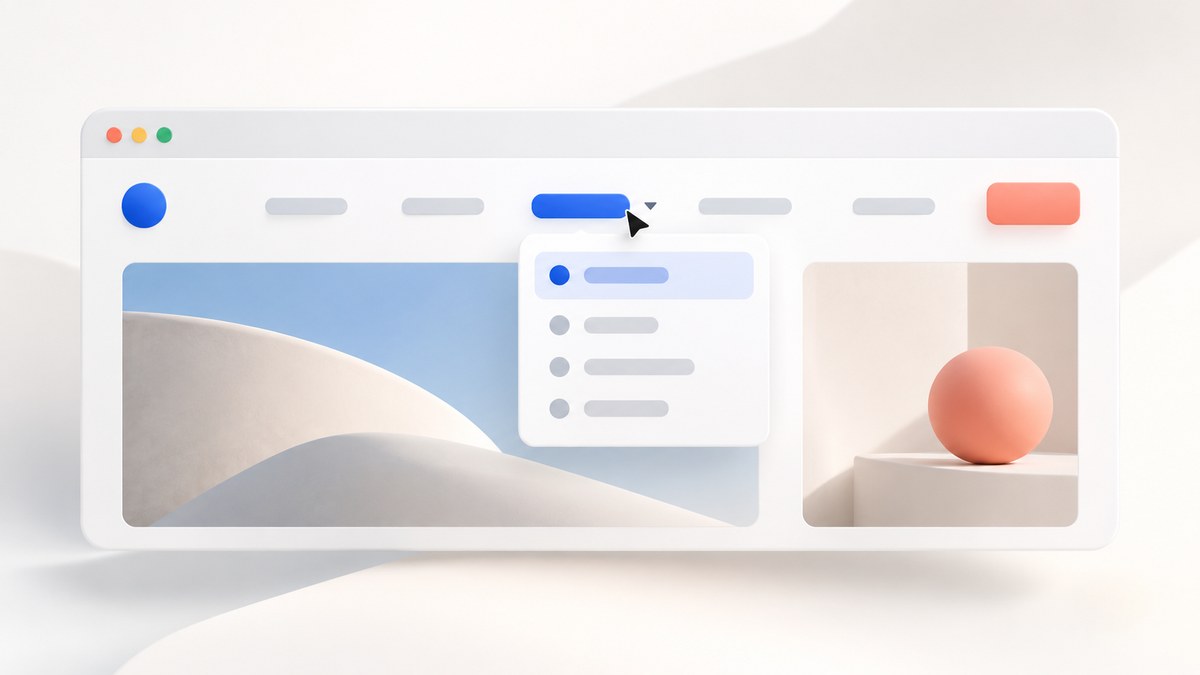
Your website navigation should feel invisible. When a visitor lands on your page, they should not have to hunt for links or guess where to click. The best menus guide users without shouting at them. That is where negative space comes in. Negative space (also called white space) is the empty area around elements. It is not wasted room. It is a powerful tool that helps users process information faster. By using negative space in your navigation menu, you create clear visual paths that feel natural and intuitive.
A negative space navigation menu removes visual clutter so users can find what they need without thinking. By adding deliberate breathing room around menu items, you reduce cognitive load and improve click-through rates. This approach works for desktop and mobile layouts and pairs well with minimalist design. The result is a menu that feels effortless and professional.
Why Empty Space Makes Your Menu Work Harder
Think about the last time you visited a website with a cramped navigation bar. Links were squeezed together. Maybe there was a tiny hamburger icon buried in a corner. Your eyes had to work to separate each option. That friction adds up. Users who feel confused or overwhelmed often leave.
Negative space solves this problem by creating visual separation. When each menu item has enough room around it, your brain can process them as individual choices. This is not about making things smaller. It is about giving each element room to breathe.
Research in cognitive psychology shows that people scan web pages in an F-shaped pattern. They look at the top left, move right, then scan down the left side again. A navigation menu that uses negative space aligns with this natural scanning behavior. Users can find the section they need without stopping to decode a busy layout.
The Real Cost of Cluttered Navigation
Crowded menus do more than look messy. They hurt your site’s performance in measurable ways.
- Users take longer to locate items, which increases bounce rates.
- Mobile users struggle to tap small targets, leading to frustration.
- Accessibility suffers when links overlap or lack enough padding.
- Brand perception drops because cluttered design feels unprofessional.
A negative space navigation menu fixes all of these issues. It is not a trend. It is a return to fundamentals.
How to Build a Negative Space Navigation Menu in 4 Steps
You can start applying these principles today. Here is a practical process for redesigning your menu with negative space.
-
Audit your current menu. List every link you have. Ask yourself if each one is necessary. Remove anything that does not serve a primary user goal. This step alone often cuts menu items by 30 percent.
-
Increase padding around each link. Set a minimum of 16 pixels of padding on all sides for desktop menus. For mobile, aim for at least 44 pixels of touch target height. Use CSS like
padding: 16px 24px;to create consistent spacing. -
Add generous margins between menu sections. If you have dropdown menus, separate parent items from child items with at least 8 pixels of space. This prevents accidental clicks and makes hierarchies clearer.
-
Test with real users. Show them the menu without any context. Ask them to find a specific page. If they hesitate, you need more negative space. Repeat until the menu feels effortless.
Common Mistakes That Ruin Negative Space
Even experienced designers make these errors. Avoid them to keep your menu clean and usable.
| Mistake | Why It Hurts | Better Approach |
|---|---|---|
| Using too much space between items | Links feel disconnected and users miss options | Balance spacing so items still feel grouped |
| Ignoring mobile viewports | Desktop looks fine but mobile becomes a scrolling nightmare | Test on a 375px wide screen before launch |
| Removing all borders or dividers | Menu loses structure and items blend together | Use subtle background color or light dividers sparingly |
| Making clickable areas too large | Users accidentally tap wrong links | Keep touch targets large but visual boundaries clear |
| Forgetting keyboard navigation | Tab order breaks and screen reader users get lost | Maintain logical focus order with proper HTML structure |
When Negative Space Fails (And How to Fix It)
Negative space is not a magic solution. Sometimes it creates new problems if applied without care.
“Negative space works best when it is intentional. If you remove visual elements without replacing them with clear structure, users will feel lost. The goal is not to make the menu empty. It is to make the menu calm.” – Sarah Chen, Senior UX Designer at Modus Design
One common failure happens on mega menus. These large dropdown menus try to show many options at once. If you add too much negative space, the menu becomes a giant blank area with tiny links scattered around. The fix is to group related items into columns and use padding inside each column. This keeps the menu airy but organized.
Another issue occurs with sticky headers. When a navigation bar stays at the top of the screen, negative space can push the menu items too far apart. Users with smaller screens may see only two or three links. The solution is to use responsive breakpoints that adjust padding based on viewport width.
Negative Space vs. Minimalism
People often confuse negative space with minimalism. They are related but not the same. Minimalism is a design philosophy that reduces elements to only what is necessary. Negative space is a specific technique that uses empty areas to improve readability and focus.
You can have a minimalist menu that still lacks negative space. For example, a barebones navigation bar with tiny text and no padding is minimalist in quantity but not in usability. True negative space adds comfort. It gives users room to breathe.
A good test is to look at your menu from two feet away. Can you still read each item clearly? If not, you need more negative space.
Tools to Help You Audit Your Menu
Several tools can help you measure and improve your negative space navigation menu.
- Use a browser extension like WhatFont to check font sizes and line heights.
- Run a click test with Hotjar to see where users hesitate.
- Check your menu with the WAVE accessibility tool to ensure proper spacing for screen readers.
- Use Figma or Sketch to experiment with different padding values before coding.
For a deeper look at how spacing affects overall design, read our guide on how to master the art of white space in web design. It covers the same principles applied to full page layouts.
Designing for Different Screen Sizes
Negative space behaves differently on various devices. A menu that looks spacious on a 27 inch monitor might feel empty on a 13 inch laptop. On mobile, the same menu could become unusable if you do not adjust.
For desktop, use generous horizontal padding between items. Aim for at least 24 pixels between each link. For tablet, reduce that to 16 pixels. For mobile, stack menu items vertically with full width touch targets. Each item should have 48 pixels of height minimum.
Do not forget about landscape vs. portrait orientations. Some users browse on tablets in landscape mode. Test both orientations to ensure your negative space holds up.
The Relationship Between Negative Space and Typography
Your choice of font affects how much negative space you need. A light weight font with wide letter spacing requires more padding than a bold, condensed font. Sans serif fonts like Inter or Helvetica usually work well with negative space because their clean shapes do not compete with the empty areas.
If you use a decorative or script font, increase the padding around menu items. These fonts have more visual weight and need extra room to stay legible. For more on pairing fonts with layout, check out our article on enhance your designs with modern font pairing techniques.
How Negative Space Affects Conversion Rates
Navigation is not just about finding pages. It is about guiding users toward actions. A negative space navigation menu can improve conversion rates by reducing decision fatigue.
When users see a clean menu, they feel more confident clicking. They do not second guess themselves. This is especially important for ecommerce sites where users need to browse categories quickly. A cluttered menu makes them want to leave.
One case study from a major online retailer showed a 12 percent increase in product page visits after they simplified their navigation and added more negative space. The change was subtle. They increased padding and removed three unnecessary links. That was enough.
Accessibility and Negative Space
Accessible design benefits everyone. Negative space plays a key role in making menus usable for people with visual impairments, motor disabilities, or cognitive challenges.
- Larger click targets help users with tremors or low fine motor control.
- Clear separation between items helps users with attention disorders focus.
- High contrast between text and background improves readability for low vision users.
- Consistent spacing helps screen reader users predict where links appear.
Always pair negative space with proper ARIA labels and semantic HTML. Space alone cannot fix a poorly coded menu. For more on inclusive practices, read our guide on designing accessible web interfaces.
A Simple Before and After Example
Imagine a typical navigation bar with these links: Home, About, Services, Portfolio, Blog, Contact. Each link is separated by a thin pipe character. The font size is 14 pixels. There is 4 pixels of padding around each link.
Now apply negative space. Remove the pipes. Increase font size to 16 pixels. Add 20 pixels of padding on each side. Give each link a subtle hover state with a background color change.
The before version feels cramped and noisy. The after version feels calm and professional. Users can scan the options without their eyes getting stuck on visual clutter.
When to Break the Rules
Negative space is not a strict law. Some designs benefit from tighter menus. For example, a dashboard with many tools might need compact navigation to fit everything on screen. In that case, use negative space for the most important items and compress secondary ones.
Similarly, some brand identities rely on dense, maximalist aesthetics. If your brand uses bold patterns and lots of visual detail, a sparse menu might feel out of place. In those cases, use negative space selectively around the logo or primary call to action.
The key is intentionality. Every pixel of space should have a reason for being there. If you cannot explain why a gap exists, remove it.
Bringing Negative Space Into Your Workflow
Start small. Pick one page on your site and redesign its navigation using the principles above. Test it with a handful of users. Measure how long it takes them to find three specific pages. Compare that to your current menu.
If the results are positive, apply the same approach to the rest of your site. Over time, negative space becomes a habit. You will start noticing cluttered menus everywhere and instinctively know how to fix them.
For more inspiration, browse our top web design trends to elevate your projects in 2026. Many of those trends rely on negative space to achieve their clean look.
Trust Your Users to Find Their Way
A negative space navigation menu works because it trusts the user. It does not try to cram every option into view. It does not rely on flashy animations to grab attention. It simply presents choices in a calm, organized way.
Your users are smart. They know what they want. Your job is to make it easy for them to find it. Negative space gives them the clarity they need without getting in the way.
Next time you design a menu, step back. Look at the empty areas before you look at the links. If the negative space feels balanced, the menu will work. If it feels off, adjust until it feels right. Your users will thank you with longer visits and better engagement.